Home Area Network (HAN) Setup & Management
Home Area Network (HAN) devices can be provisioned, communicated with, and monitored using Command Center through ZigBee-enabled meters. The following processes will describe setting up the Home Area Network, as well as basic management capabilities, including the following bold commands as part of the process:
NOTE: The HAN Initialization functionality added to Command Center as part of release 5.6 now requires that the HAN module receive a HAN Init before any HAN functionality is permitted (e.g. Commissioning a Network, Provisioning a Device, Sending a Price, Text Message, etc...). Currently Command Center is the only platform which can issue the HAN Initialization.
In order to use the HAN functionality within ETM, a HAN Initialization Command must be successfully completed via Command Center before ETM can be used to operate and manage the HAN. Please see Customer Service Update 98-1217 for more details.
Pre-requisite:
•Meters must be ZigBee-enabled and in Normal status before any of the following HAN functionality commands are usable.
1.Send the HAN: Initialization command to the ZigBee-enabled meter, if not already completed during 5.6 (or later) Gridstream System Release upgrade.
2.Provision HAN Devices
3.Provisioned devices can utilize the following HAN applications:
a.Usage/Metering Information.
b.Text Messaging.
c.Load Control.
d.Pricing/Rate Information.
4.Remove HAN Devices from Home Area Network:
a.HAN: Delete Device.
b.HAN: Clear Devices.
c.Decommission HAN.
5.Management & Troubleshooting:
a.Meter Swap out process using Decommission HAN.
b.Commission HAN Network for Channel Control.
c. Meter LCD Window for ZigBee Alerts.
d.Confirm HAN Radio in Meter is Communicating or HAN is set-up.
e.Get information for a specific device.
f.Get FW version for the HAN radio.
g.Confirm that a HAN device can communicate with the meter.
The HAN: Initialization command provides the meter with key information that the Home Area Network will need to properly communicate metering information to HAN devices. This process allows the module firmware to flexibly adjust its meter information collection process to work with any meter or meter program.
NOTE: The HAN: Initialization command is new to Gridstream with System Release 5.6, and required to be sent to all existing or new Home Area Networks.
Please see publication 98-1188: HAN Initialization and Firmware Transition Guide for more details on the HAN Initialization process. This document includes the full process, as well as expected results or potential issues. It is expected that users will leverage this document in parallel to this user guide.
NOTE: If a HAN command is sent to a meter before the HAN: Initialization command has been successfully sent to a meter, the HAN command will fail and the HAN: Initialization command will be sent to the meter in its place. Once the initialization process is complete, the original HAN command, which was failed, will need to be retried by the user or 3rd party system.
Under the Manage Tab on the Endpoint Information Window, select the HAN: Initialization command from the drop-down menu and press Send. This will cause the meter to change from a status of Normal to a status of Configure. This status change indicates that the HAN initialization process is underway. Once the meter status changes from Configure to Normal the HAN initialization process is complete.
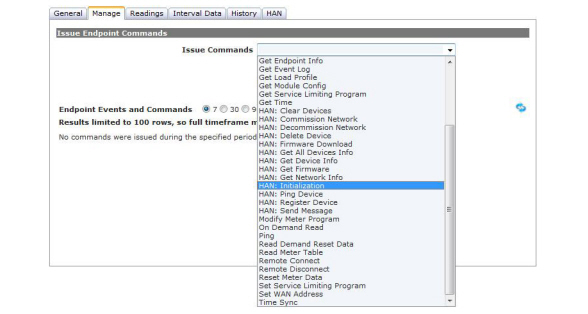
Figure 8 - 1. HAN: Initialization
Provisioning a HAN device (such as a display, smart thermostat, or direct load control unit) securely joins a specific ZigBee-enabled HAN device with a specific meter so that they can communicate across their meter's Home Area Network.
When the first HAN device for a meter is provisioned, a Home Area Network is automatically commissioned. This involves Gridstream assigning a Channel (from a list of preferred channels) and HAN ID. If there is a need to specifically assign the Channel and or the HAN ID, use the HAN: Commission Network Command, as described under the Management and Troubleshooting section below.
NOTE: Up to 5 devices may be provisioned to a single Non-Enhanced meter and up to 10 devices, 8 of which may be DRLC devices, for a single Enhanced Meter.
A device can be provisioned in two ways from Command Center: either 1) HAN Tab or 2) Manage Tab on the Endpoint Information Window:
1.On the Endpoint Information Window, select the HAN tab.
Click the New button to display the new device fields shown below.

Figure 8 - 2. HAN Tab
...or...
2.On the Endpoint Information Window, select the Manage Tab.
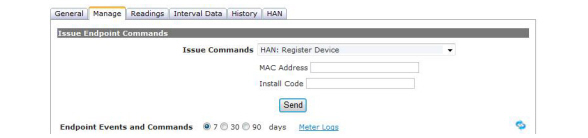
Figure 8 - 3. Manage Tab
a.Enter the MAC Address. (Listed either on the HAN device or HAN device packaging.)
NOTE: A Media Access Control address (MAC address) is a unique identifier assigned to most network adapters or network interface cards (NICs) by the manufacturer for identification.
b.Enter the Install Code. (Listed either on the HAN device or HAN device packaging)
c.Click the Send button. This will notify the Meter to open a Join Window for the specified HAN device.
NOTE: The window of time during which the customer may complete registration is determined by the user configuration setting in the Organization Information window and must be set to a value of between 1 to 30 days.
3.The HAN or Manage Tab will be updated with a device status of Provision Request, which indicates that the Meter has opened a Join Window for the specified device. The MAC Address and Install Code for the specified device will be shown in the updated window as well.

Figure 8 - 4. MAC Address
4.Once initial contact with the specified device has been made, the device status will update to Find Pending.
NOTE: You may need to click the Refresh icon periodically to determine if the device has entered the Find Pending status.
5.When the device is in the Find Pending status, the customer (end device user in premise) may need to complete registration by joining or accepting the HAN network; if needed, this is often accomplished simply by pressing a button on the device. This is not always necessary because some HAN devices have completely automated this process, requiring no user interaction. This process can vary by HAN device; please consult the device user's guide or manual for details.
6.Once the device joins the HAN network, the Status will change to Normal and the Device Type field will be populated. The HAN Device is now joined and ready for use.
For provisioned HAN devices, the following functionality/communication may be possible, depending on what is supported by that device. Gridstream's support of these applications is further detailed in the Command Center User Manual, as well as the Integration Suite SDK.
•Usage Information: Once provisioned, HAN devices can receive usage information, such as kWh and kW, as values are updated by the meter.
NOTE: The usage information available to the HAN devices from the meter will depend on the type of meter, as well as the Smart Energy version of the HAN device.
•Text Messaging: Character-based text messages can be sent to in-home displays from either Command Center or via Integration Suite.
•Load Control: Direct load control commands such as thermostat temperature adjustments and load-based duty cycling can be sent via Integration Suite.
•Pricing Information: Energy rate information for both flat or Time-of-Use structured pricing can be sent via Integration Suite.
Removing (de-provisioning) a HAN device from the Home Area Network can be accomplished in three ways:
•If the user wishes to remove a single HAN device and leave the HAN Network Commissioned, use the HAN: Delete Device command under the Manage Tab on the Endpoint Information Window.
•If the user wishes to remove ALL HAN devices but leave the HAN Network Commissioned, use the HAN: Clear Devices command under the Manage Tab on the Endpoint Information Window.
•If a user wishes to remove a single or all HAN devices and decommission the Home Area Network, use the HAN: Decommission Network command under the Manage Tab on the Endpoint Information Window and click Send.
NOTE: If a HAN Network has been decommissioned, when the HAN Network is re-commissioned it will setup new trust center encryption keys and will reassign a random Channel and HAN ID if not specifically assigned through the HAN: Commission Network command. It will be necessary to re-provision any HAN devices since this will be a new unique HAN Network.
Management and Troubleshooting
Meter Swap Out Process using Decommission HAN
For management and troubleshooting of the HAN Network and associated HAN devices, the following commands can be used: Commission Network, Get Network Info, Get Device Info, Get Firmware, and Ping.
NOTE: If a meter needs to be swapped out, the HAN must be decommissioned, or at very least, all the HAN devices must be removed. Removing these devices will allow them to be re-provisioned on the replacement meter.
Commission HAN Network for Channel Control
The HAN: Commission Network command is used to commission a HAN network with a specific Channel and HAN ID. This command can be used to troubleshoot scenarios in which there may be channel interference or spotty communication with a HAN device.
NOTE: A HAN Network will be automatically commissioned by provisioning a HAN device to a meter if no HAN network is present. The automatic process will randomly assign the Channel from a list of preferred channels as well as the HAN ID.
1.On the Endpoint Information Window, select the Manage tab. Select HAN: Commission Network from the Issue Commands drop-down menu. The user will need to select the Channel and HAN ID.
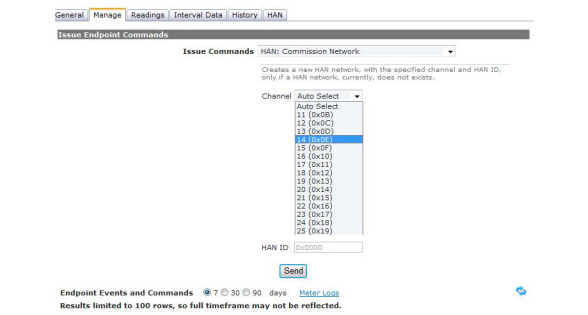
Figure 8 - 5. Commission HAN Network
2.For Channel, choose Auto Select which will randomly select a SEP preferred channel
...or...
3.Select a specific channel 11-25.
HAN ID field will display the selected HAN ID.
4.Click Send.
Meter LCD Window for ZigBee Alerts
NOTE: After installation, the meter display will flash Z/B under the following conditions:
No network commissioned: The ZigBee module will request the time from the Gridstream radio every 30 seconds after power up and every 15 minutes once it has received the time from the radio.
HAN Network is commissioned: When HAN is present, regardless of any devices present, the ZigBee module will read the meter data every 30 seconds in anticipation of HAN devices needing that information.
Confirm HAN Radio in Meter is Communicating or HAN is Set-up
To confirm the existence of a HAN Network or to gather details on the HAN Network, issue the HAN: Get Network Info command.
It will return the Channel and HAN ID.

Figure 8 - 6. HAN Network Info
Get Information for a Specific Device
To confirm device details issue the HAN: Get Device Info command. It will return the MAC Address, the Installation Code, and Device Type i.e: In Premise Display, Programmable Controllable Thermostat.

Figure 8 - 7. HAN Device Info
Get Firmware Version for the HAN Radio
To confirm which firmware the HAN module in the meter is using issue the HAN: Get Firmware command. This will return the ZigBee Firmware version number which will allow the user to figure out if the meter is running the proper ZigBee Firmware.

Figure 8 - 8. HAN Firmware Info
Confirm That a HAN Device Can Communicate with the Meter
To confirm if Command Center can communicate with a HAN device or whether a HAN device is still in communication with its meter, issue the HAN: Ping command. The Ping HAN Device Status will be returned notifying the user that the Ping Command was issued. To verify that the device was Pinged, check the history on the Manage Tab as the response from the device will be logged in the device history.

Figure 8 - 9. HAN Ping Device